An introduction to creating ReST packages.
| Revision History | |
|---|---|
| Revision $Revision: 1.19 $ | $Date: 2006/05/25 $ |
| Current CVS Version. | |
| Revision 1.0 | 5/25/2006 |
| Initial Public Release | |
Abstract
The most important aspect of creating any software package is distributing it in an uncomplicated and unified manner. However, creating robust software packages which are uncomplicated requires much planning. Using the ReST Packager, however, lessens the burden of pre-planning by providing a step-by-step wizard breaking down package creation into manageable sections. Each section has extensive documentation regarding the purpose of each feature and has color coded fields which show which are required and which are optional. Each feature has helpful tooltips providing a quick reminder of how to use it. It should be noted not all features available in the Packager are implemented in the Installer. However, filling out each feature available in the packager ensures completeness and compatibility with future versions of ReST. Essentially, the ReST Packager serves as a guide through the difficult process of creating robust ReST packages. This, in-turn, guides users though installing the software just packaged in a unified manner both in remote heterogeneous and future supported installation environments.
Table of Contents
- 1. ReST Package Basics
- 2. The Packager GUI
- 3. Creating and using the package file
- 4. Conclusions
- I. Package XML Elements
-
action- Commands that can be run after a package has been installed.actions- Wrapper element for multiple action elements.backgroundcolor- Declare the background color that should be used in the ReST applications when referencing this package.backgroundimage- Declare the background image that should be used in the ReST applications when referencing this package.base- Gives the base directory for this package.checksumuri- Give the uri to a file that contains the checksum for this package.command- Run a command on the remote system.compilation- The 3rd of the 5 steps to installing a package.completion- The 5th of the 5 steps to installing a package.configfile- Declare a file that must be configured by the user.configuration- The 2nd of the 5 steps to installing a package.def- Defines a substitution or command option in a pre set.description- Provide a description of the package.explorerattributes- Contains attributes to customize the look and feel of the ReST Explorer for a specific package.header- Provide basic metadata about the package.icon- Defines the icon to appear in the titlebar of a ReST application when referencing this ReST package.info- Give additional information about the software contained in this package.infouri- Give a link to a text file containing additional information about the software contained in this package.installation- The 4th of the 5 steps to installing a package.installerattributes- Contains attributes to customize the look and feel of the ReST Installer for a specific package.license- Define the licensing terms of the included software.licenseuri- Define the licensing terms of the included software.monitorattributes- Contains attributes to customize the look and feel of the ReST Monitor for a specific package.name- Gives the name of the packager.option- Declares configurable options for a command.package- The ReST Package root element.packagedir- Declare a directory within the structure of the package file.packager- Information about the person who created this ReST Package.packagesrc- Declares a file that appears in the ReST package.patch- Declares a patch file to be applied to the sources contained in this file. (NOT CURRENTLY SUPPORTED)pre- A set of predefined options and substitutions.predefs- Provide groups of pre-defined command options and configuration substitutions.preparation- The 1st of the 5 steps to installing a package.sub- Defines a substitution that will be made in a configuration file.title- The title the will appear in the ReST applications for this package.uninstallation- An option additional step to define how to uninstall a package.uri- A standard URI that may be used to provide more information about a package or package author.version- Give the version of packaged software.
- II. Complete Package XML
-
- Complete Package XML Example - Show the complete XML of a package.
List of Figures
- 2.1. Create Header
- 2.2. Select Configuration Files
- 2.3. Configuring Substitutions
- 2.4. Configuring Substitutions
- 2.5. Adding Files
- 2.6. Command Sections
- 2.7. A Package Command
- 2.8. A Package Command Option
- 2.9. The Action Setup Panel
- 2.10. The Action Command Option Setup Panel
List of Examples
- 2.1. Boolean Substation
- 2.2. The 6 Steps
- 2.3. Command Option XML
- 2.4. Package Actions XML
- 3.1. Running the ReST Packager.
- 3.2. Installing a Package
- 7. Action Example
- 8. Actions Example
- 9. Command Example
- 10. Configfile XML Example
- 11. Sample Configuration File Stub
- 12. Package Header Example
- 13. License Example
- 14. Licenseuri Example
- 15. Predef and Def Example
- 16. Example Package XML
Table of Contents
Although used primarily by the ReST Installer, ReST packages are the means by which the ReST Application Suite is customized for individual pieces of software. The ReST package contains the software and metadata needed by the Installer to install software on remote machines. The package metadata is used by the Installer and Explorer to maintain the state of installed software and in future versions of ReST it will contain information needed to customize the Monitor to work with the installed packages. In order to produce a well-written package it is important to understand what is contained in the package and what conventions are expected by the ReST Suite.
A ReST package is essentially a ZIP/JAR file containing two special files, a package XML file and a checksum file. The package XML file, name package.xml inside the package, contains both basic metadata about the package and instructions on how to install the package from source or pre-compiled binaries. The checksum file, at this time must be created by the ReSTPackager program contains checksums of each file within the package and is must pass before the Installer will run the package. Details about the package sources are not necessary, since they could be any file that is pertinent to the software being installed. Details about writing the package XML, including documentation of each XML tag, and creating the package file appear later in this document.
It is possible to extract the package.xml file from the package using the jar utility supplied with the Sun JDK. The simplest means of extracting the package.xml is with the command jar -xvf <package name> package.xml. If you would like to extract the remainder of the contents, simply leave the package.xml off the end of the command. For more information see the Package Makers guide in the ReST online documentation section.
The planning step is the most important part in successfully creating a working package. Before writing the XML create a step-by-step list of how the software is installed. If possible, walk through the installation in a clean /bin/bash environment, since this will more realistically reflect the environment in which ReST will install the software. Once this list has been written, place a mark next to each command that would not need to be run on every machine in an homogeneous environment with a shared filesystem. Now note command options that should be offered for each command, for example ./configure --with-foo. Try installing the software by walking through this list one command at a time; if it works without problem then fewer problems are likely to occur when the package is written.
Table of Contents
Upon opening the ReST packager, you will notice several distinct elements of the layout. First, the packager is built on the same framework (ReST Wizard Framework) as the ReST Installer. Using the same framework allows the packager to become familiar with the Wizard Framework as well as providing a simple means of walking packagers through the complex process of creating a ReST Package. Each major section in package creation is located on an distinct panel listed on the left side of the packager. The panel that is currently selected has an arrow on the left side (left callout in Figure 2.1). Separating the sections into distinct panels allows packagers to better focus on each individual section and have a firm roadmap for package creation. Each element has an associated tooltip which describes the purpose of the entry. After the packager is open, it is possible to open both ReST Packages (.rsp) and ReST Package XML (.xml). It is important to make sure that the all of the included files listed in the package files are accessible to the packager.
Figure 2.1. Create Header
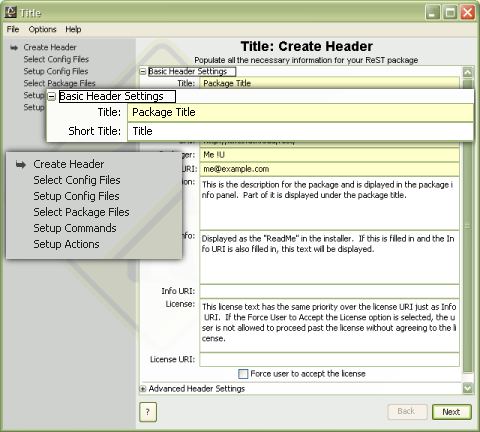
The common elements in all panels of the packager (cutout in regular size with the packager window in the background). Yellow dialogs denotes required entry and left panel list shows location and todo list of package creation.
There are several important tags in the above example.
The titlesets the package title
that will appear in the Installer. If the title is longer
than 25 characters, a second, shorter title may be set with
the roleattribute
set to short. If no short title is provided and the title
is longer than 25 characters, then in space-constrained
parts of the application the long title will be truncated
at 25 characters. The baseelement gives a way
of grouping packages that should be installed in a similar
area. For example, packages for the LAPACK and BLAS
libraries have been written with a base of libso that they, and other
libraries, will be easy to find and use. The baseshould always be set
to a value that will be valid for the filesystem on all
target machines.
The contents of the versiontag should be the
version on the software in the package and not the version
of the package itself. The version of the package can be
given as an attribute of the packageroot element if
desired. Additional tags exist for the package header,
including options for editing configuration files, added
files to the package, and defining actions that can be
performed once the package has been installed. All of these
tags are defined with examples in a reference sectionat the
end of this document.
Many software packages have configuration files that must be edited before the software can be used. To the developer of a software package writing the configuration files may be trivial, but this is often not the case for the end user. For this reason, the ReST Installer may be used to edit configuration files for the software package. The package must include a stub configuration file with a series of tokens to substitute. Each token appears with a % character on either side of the token, such as %token%. With a stub file created the packager must define the substitutions for this file in the Packager.
The configuration files are a special category of package files as stated above. The configuration (config) file tokens are substituted during transfer after all the package files are transferred and the preparation commands are completed. To add a config file to the package, browse to the files containing the tokens or type in the location and choose import. As the files are imported, they are scanned for any tokens contained and the number of tokens is displayed in the tokens column. Double clicking on a row or right clicking on it and selecting view will display the file in the viewer. If a config file needs deletion, right click on the file and select remove. The complete file path can be viewed as a tooltip by hovering the mouse cursor over the row as seen in Figure 2.2.
Figure 2.2. Select Configuration Files
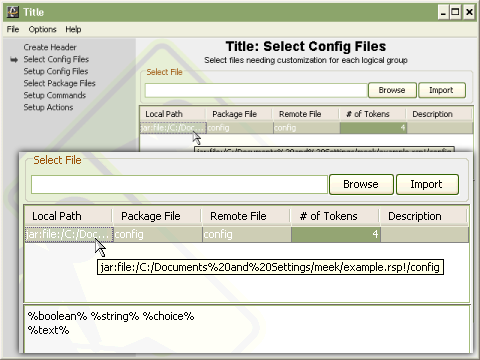
Selecting configuration files is easily done using the packager.
Once all the config files have been imported into the
Packager the Setup Config Files panel display's the config
files tokens needing to be setup. The configfiletag has three
attributes: packagefile (the location of the stub file in
the package), remotefile (where the resulting configuration
file should be placed on the remote machine), and
description (a simple description for the user). Additional
information about the configfileand subtags, including additional
attributes to each, can be found in the reference section
at the end of this document. Figure 2.3 shows the "config"
config files with four tokens titled "boolean", "string",
"choice" and "text". When the Setup Config Files panel
initially loads, each config file is listed with a
collapsable section containing the tokens. The first config
file initially is expanded as show for the "config"
configuration file in Figure 2.3. Each token also has a
collapsable section under it, as show in Figure 2.4, with
the various types of substitutions that can performed. It
is important to note the names of the tokens are very
important because they are what is displayed to the user
when prompting for input.
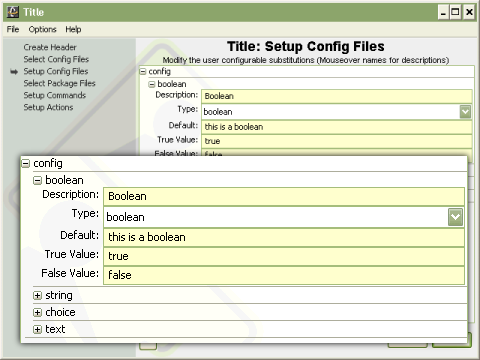
Once all the configuration files have been entered the Setup Config Files panel displays all the configuration (config) files with an associated listing of all the config files tokens. Each config file token also has a collapsable section allowing for selecting the type of substitution and setting up the token. Every token requires several common inputs, Type, Description and Default. The substitution type determines what the installer displays for input. Boolean displays a checkbox with the associated token name. String displays a single line text input box. Choice displays a drop-down box, similar to the box for Type, that can be made editable by the packager by selecting the appropriate checkbox. The choice values are input in a comma delimited list and may contain spaces. The final substitution type is text. The text area allows for substitutions to be made containing special characters such as tabs and newlines. As with all components, any field with a yellow background signifies required field for the specific substitution type.
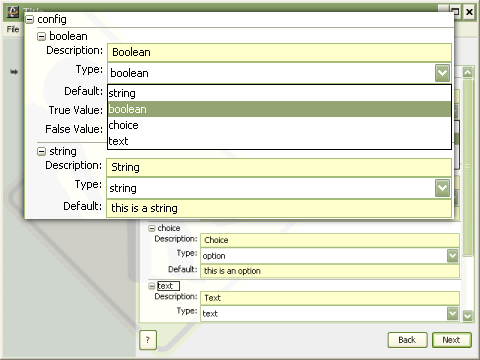
In the previous two figures (2.4 and 2.5) only four
substitutions are made ReST, however, will handle as many
substitutions as are needed. Each of the four substations
represents a type of substitution supported by ReST ,
string(no more than one line of
text), text(multiple lines of
text), choice(a defined set of
choices, much like available for command options) and
boolean (a checkbox defining if a predefined substitution
should take place). Each substitution type is useful for
different types of substitutions. For example, boolean
substitutions are useful when a single line needs to be
commented or uncommented. This could be done by the
following example
Example 2.1. Boolean Substation
#Uncomment the next line to enable 3D mode %Enable 3D
      Mode%enable-opengl
The token is "Enable 3D Mode" and the most useful substitution type would be boolean. With the boolean type selected, two new fields are displayed, true value and false value. The user is displayed a checkbox when setting up the config file. If Default is set to "true" then the default substitution made is with the true value, otherwise, the false value is used for the substitution. So, if the true value is set to "" and the false value is "#", the user can change the value easily in a familiar way but clicking on a check box followed by "Enable 3D Mode".
The boolean substitution has the most complex substitution usage available in ReST. The other substitutions have less options available and are therefore less complex in their usage. The types of substitutions that are not boolean all have a default value. If no user customized value is provided then the default it substituted when the substitution takes place for all types except boolean.
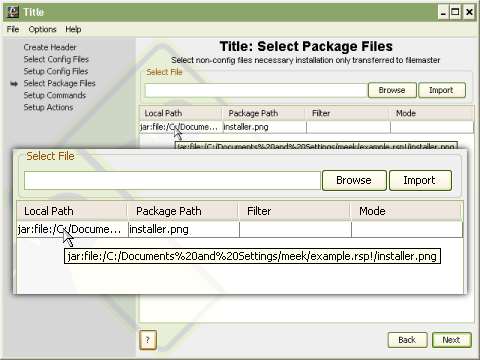
Adding files to the packages is very similar to adding config files except all the files in a directory can be added by selecting the containing dir. Package files are transferred before any of the package commands are executed. All of the package files are placed in the directory that package working directory. This provides the packager a common experience when creating packages and working with the package files.
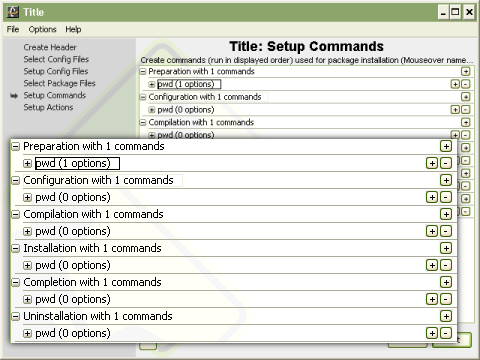
Commands in the package are broken into six steps, which simply provide a logical grouping of the commands that are run. The six steps as seen in Figure 2.6, in order, are Preparation, Configuration, Compilation, Installation, Completion, and Uninstallation, with the last grouping actually optional. Commands that need to be run first, before anything else can happen, such as extracting archives or creating directories should be placed in the preparation step. Package sources will be sent to the remote machine and package directories will be created prior to this step. Anything pertaining to configuring the software, such as running a configure script should be placed in the configuration step. Configuration files included in the package will be sent to the remote machine between these first two steps. Commands related to compiling and installing the package should be placed in the next two steps respectively. During the completion step the packager should clean up the build area however possible, such as deleting unneeded sources that remain. Lastly, if a packager would like to provide a means for automatically uninstalling their software, commands pertaining to this should be placed in the uninstallation step. Each step is essentially equal, but provides a logical way of organizing the package. Packagers are encouraged to group their commands using these logical step. Every step except the uninstallation step must be in the package XML, but may be empty if not needed.
The sections below will provide an overview of how to write a package XML file. For more detailed information about the XML tags, including advanced attributes, please see the reference section at the end of this document.
As explained earlier, all commands for installing and
uninstalling a package are organized into six logical
steps: preparation,
configuration, compilation, installation, completion, and uninstallation. The uninstallationstep is optional, but
recommended. These steps are essentially equal, except
that configuration files are sent to the remote machine
between the preparationand
configurationsteps. It is
highly recommended that packagers take advantage of the
six steps for logically grouping the package commands.
Future version of the the ReST suite may contain
optimizations or changes in the handling of these steps
and forward compatibility is best ensured by using these
steps. Below is an example of the six steps appearing in
the package xml as seen in Figure 2.6.
Example 2.2. The 6 Steps
<preparation> <command value="tar -xf
        example.tar"> <command value="cd example/">
        </preparation> <configuration> <command
        value="./configure --prefix=$PWD">
        </configuration> <compilation> <command
        value="make all"> </compilation>
        <installation> <command value="make install">
        </installation> <completion> <command
        value="make clean"> <command value="cd ..; /bin/rm -f
        example.tar"> </completion> <uninstallation>
        <command value="cd example"> <command value="make
        uninstall"> <command value="cd ..; /bin/rm -rf
        example/"> </uninstallation>
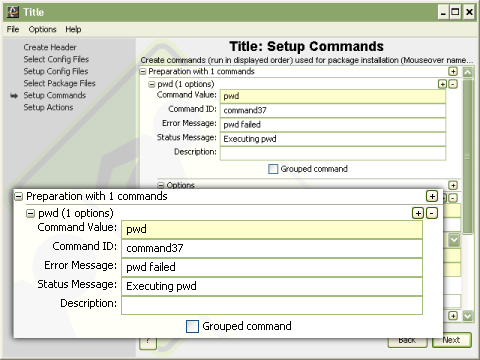
Package commands makeup the heart of rest packages. Commands are run in the bash shell and as seen in Figure 2.7 have several attributes. The most important attribute is the command value. The command value is that actual command that will be executed. Options for the command may be included in the command value but are better left as a command option included with the command. The description is the next most important value showing up as a tooltip when the Installer user modifies the command. It allows the packager to provide further information to the user as to the purpose of the command and what the user might decide to do with the command. The Command ID will be automatically generated by the packager, but should be customized for better interoperability with the Installer scripting mechanism and upcoming features of the ReST Tool Suite. The error message is displayed to the user associated with the machine the command failure occurred. The status message is displayed on the machine the command is running.
Some commands may need to be configured by the user
before they are run on the remote machine. For that
reason the ReST XML allows commandtags to contain
optiontags. The optiontags define
command-line arguments for a given command and can be
configured by end users. A good example of a command that
will likely contain options is the ./configurescript, which is included in
many source distributions. It is common for this command
to have many different command line options for properly
configuring the build process. Below is an example of the
./configurecommand with
options.
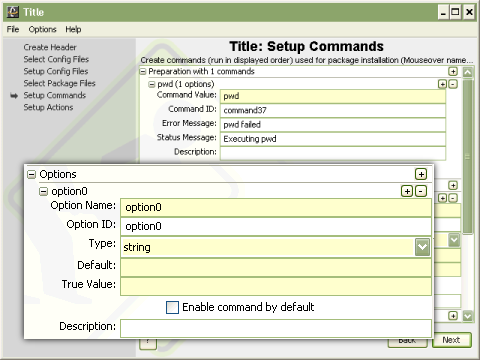
Example 2.3. Command Option XML
<command value="./configure" grouped="true">
        <option name="foo" type="text"
        default="/usr/local/lib/libfoo.a"
        truevalue="--with-libfoo="/> <option name="bar"
        type="boolean" default="false" truevalue="--with-libbar"
        falsevalue="--without-libbar"/> <option
        name="ouputlevel" type="choice" choices="debug,view,none"
        default="none" truevalue="--with-outputlevel "/>
        </command>
The above example defines three possible options for
the ./configurecommand. All of
the options have four common attributes: name, type,
default, and truevalue. The name attribute is exactly
what would be expected, the name that the user will see
when configuring this option. The type attribute may be
either string, boolean, or choice. The default attribute defines what
the value should be by default, which is required for
installation in simple mode. Finally the truevalue
attribute defines what is appended to the command if the
option is enabled or if a option of type boolean is
selected. For example, if option foois enabled and the default value is left
untouched the resulting string --with-libfoo=/usr/local/lib/libfoo.awill
be appended to the command. Packagers are encouraged to
expose all possible command-line options to the users
through ReST as the packager is more knowledgeable about
the software included than the user. Additional
information about the optiontag can be found
in the reference section at the end of this document.
ReST actions are commands that exist on systems after
a software package has been installed. For a piece of
server software, for example, this could include
starting, stopping, and restarting the server. An
actionis simply a wrapper
around one or more commandtags, much like
each of the six steps described above, except that the
actiontag requires a name
for the action. Actions can be run by the ReST Installer
immediately after installation is complete or by the ReST
Explorer at any time after package installation. Below
are pictures of the Action setup GUI and an XML example
of a package action.
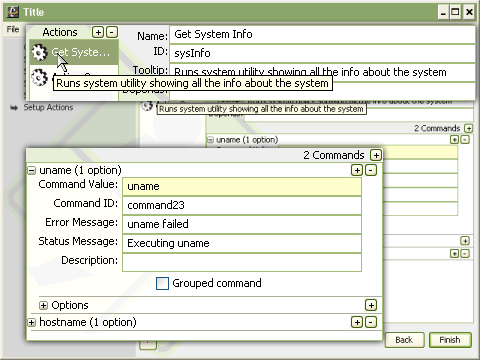
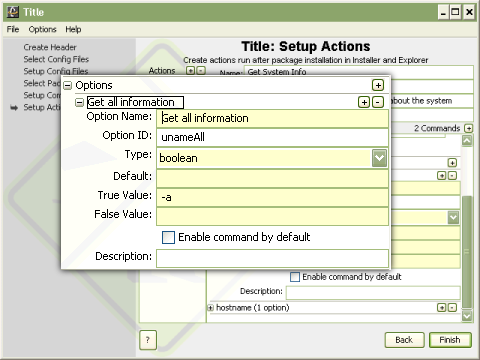
To add an Action to the package, click on the + button on the top right next to the "Actions" label (Figure 2.9). This will add an action to the list below the actions label. The action attributes can be set in the form to the right of the Actions + and - buttons. All value of the action, Name, ID, Tooltip and Description should be entered. Added commands to and actions is done the same way as to the six command sections and the action commands may also have command options that are also added in the same manner as in the "Setup Commands" panel (see Figure 2.10).
Example 2.4. Package Actions XML
<actions> <action name="Start Server"
        tooltip="Start a server."> <command value="/bin/bash
        ./start_server.sh" statusmsg="Starting Server"
        errormsg="Failed to start server."/> </action>
        <action name="Kill Server" tooltip="Kill a server.">
        <command value="/bin/bash ./kill_server.sh"
        statusmsg="Killing Server" errormsg="Failed to kill
        server."/> </action> <action name="Restart
        Server" tooltip="Restart a server."> <command
        value="/bin/bash ./kill_server.sh" statusmsg="Killing
        Server" errormsg="Failed to kill server."/> <command
        value="/bin/bash ./start_server.sh" statusmsg="Starting
        Server" errormsg="Failed to start server."/>
        </action> </actions>
In the graphical packager simply select "File->Save". From the command line it is a little more complicated. Once the package XML has been written, stub configuration files have been created and source files have been gathered, it is time to combine all of the files into a ReST package. Part of the ReST suite is the ReST Packager utility. This utility combines all of the necessary files into one package for easy distribution. Below is an example of how the ReST Packager is used.
Example 3.1. Running the ReST Packager.
> java -jar ReSTPackager.jar -X examplepackage.xml
    -f example.rsp file1 file2 stub.cfg
In the above example, the user has run the ReST Packager,
which is included in the ReST suite to create a package named
example.rsp. The -Xargument tells
the ReST Packager to use examplepackage.xmlas the package XML file for
this package. The -fargument tells
the packager the name of the file to create. The remaining
arguments tell the Packager which files to include. Every
file that is declared in the package.xml must be included in
the Packager arguments. The resulting file can be distributed
by whatever means desired and used with the ReST
Installer.
Once the package file is created, it simply needs to be installed from the ReST Installer. To install the package, run the ReST Installer with the name of the package as an argument. The package can be local or placed on a web server, although larger packages will run more quickly if they are local. Here is an example of our package being used by the ReST Installer.
The ReST package specification was designed to give packagers a flexible system for creating an application installer for their software. This document should have given you the basic knowledge needed to build a package for your software. More detailed information about the ReST package XML, including a full example can be found in the reference pages of this document. For questions about ReST and to provide feedback or suggestions, please feel encouraged to e-mail the authors of this document.
Table of Contents
action- Commands that can be run after a package has been installed.actions- Wrapper element for multiple action elements.backgroundcolor- Declare the background color that should be used in the ReST applications when referencing this package.backgroundimage- Declare the background image that should be used in the ReST applications when referencing this package.base- Gives the base directory for this package.checksumuri- Give the uri to a file that contains the checksum for this package.command- Run a command on the remote system.compilation- The 3rd of the 5 steps to installing a package.completion- The 5th of the 5 steps to installing a package.configfile- Declare a file that must be configured by the user.configuration- The 2nd of the 5 steps to installing a package.def- Defines a substitution or command option in a pre set.description- Provide a description of the package.explorerattributes- Contains attributes to customize the look and feel of the ReST Explorer for a specific package.header- Provide basic metadata about the package.icon- Defines the icon to appear in the titlebar of a ReST application when referencing this ReST package.info- Give additional information about the software contained in this package.infouri- Give a link to a text file containing additional information about the software contained in this package.installation- The 4th of the 5 steps to installing a package.installerattributes- Contains attributes to customize the look and feel of the ReST Installer for a specific package.license- Define the licensing terms of the included software.licenseuri- Define the licensing terms of the included software.monitorattributes- Contains attributes to customize the look and feel of the ReST Monitor for a specific package.name- Gives the name of the packager.option- Declares configurable options for a command.package- The ReST Package root element.packagedir- Declare a directory within the structure of the package file.packager- Information about the person who created this ReST Package.packagesrc- Declares a file that appears in the ReST package.patch- Declares a patch file to be applied to the sources contained in this file. (NOT CURRENTLY SUPPORTED)pre- A set of predefined options and substitutions.predefs- Provide groups of pre-defined command options and configuration substitutions.preparation- The 1st of the 5 steps to installing a package.sub- Defines a substitution that will be made in a configuration file.title- The title the will appear in the ReST applications for this package.uninstallation- An option additional step to define how to uninstall a package.uri- A standard URI that may be used to provide more information about a package or package author.version- Give the version of packaged software.
Name
action — Commands that can
be run after a package has been installed.
Description
Once a package has been installed there may be some commands that a user will be able to run. ReST calls these commands "actions" and allows them to be run in the Installer immediately after an installation or by the Explorer at any time after the package has been installed.
Atrributes
-
name (required) - How the action should be known
-
tooltip (required) - This will appear as a tooltip in the ReST applications
-
id (optional) - A unique id for this action within the package. This is only needed if there are dependencies between actions.
-
depends (optional) - A comma-separated list of action ids on which this action depends.
Name
actions — Wrapper element
for multiple action elements.
Example
Example 8. Actions Example
<actions>
<action name="Start Server" tooltip="Start a server.">
  <command value="/bin/bash ./start_server.sh" statusmsg="Starting Server"
            errormsg="Failed to start server."/>
</action>
<action name="Kill Server" tooltip="Kill a server.">
<command value="/bin/bash ./kill_server.sh" statusmsg="Killing Server"
errormsg="Failed to kill server."/>
</actions>
Name
backgroundcolor — Declare
the background color that should be used in the ReST
applications when referencing this package.
Description
If the backgroundcolor element
appears in an application's attributes then the declared
color will be used instead of the default background
color for applications referencing this package. The
color should be given in hex notation as would be given
in HTML code.
Parents
The following elements are valid parents of backgroundcolor:
explorerattributes, installerattributes,
monitorattributes.
Name
backgroundimage — Declare
the background image that should be used in the ReST
applications when referencing this package.
Description
If the backgroundimage element
appears in an application's attributes then the given
image will appear as a watermark in the background of
ReST applications as they refernce this package. The
image could be included in the ReST package or reference
an image that appears in a web space.
Parents
The following elements are valid parents of backgroundimage:
explorerattributes, installerattributes,
monitorattributes.
Name
base — Gives the base
directory for this package.
Description
By defining a base directory for a package, multiple packages can be organized to share a common space. This is useful for organizing libraries, which can be given a base of libs, or software packages that include several plugable or optional components that may be installed at a later time.
Name
checksumuri — Give the uri
to a file that contains the checksum for this
package.
Description
When a package is created with the ReST packager a
checksum is printed, which can be placed in a file on a
webspace. This element points to such a file to give the
ReST application the ability to verify the package before
using it. This behavior is optional. ReST packages
already contain checksums of the files contained, which
are verified when a package is used; package checksums
are in addition to this behavior. At the current time
checksumuri is not
supported, but will be added to future versions of
ReST.
Name
command — Run a command on
the remote system.
Description
The command tag declares a
single command to be run on the remote system. By default
this command is run in a /bin/bash environment and commands should
be written with this in mind. A command contains 0 or
more option tags, allowing the
command to be configured from the ReST application's
GUI.
Attributes
-
value (required) - The command to be run.
-
shell (optional) - The shell in which to run the command. At this time
shellis not supported, but support will be added in future versions of ReST. -
required (optional) - If the user should be given the option to not run this command,
requiredshould be set to false. Ifrequiredis not given, the command will be run. -
grouped (optional) - If running the command on one machine in a given logical group is sufficient, set
grouped="true", ifgroupedis not given orgrouped="false"the command will be run on every machine in the logical group. -
id (optional) - A unique id given to this command, which is used if command dependencies exist. Dependencies are not supported at this time.
-
depends (optional) - A comma-separated list of ids on which this command depends. Dependencies are not supported at this time.
-
errormsg (optional) - A short message that should be displayed as the status of a given location if the command fails.
-
statusmsg (optional) - A short message that will be displayed as the status of a given location as it runs a command.
-
description (optional) - A description of the command, used to help users understand the commands as they are configured.
-
forceConfigure (optional) - By default command options are only configured in Advanced Mode for a given ReST application. However, if a given command must be configured, set
forceConfigure="true".
Parents
The following elements are valid parents of command: action, compilation, completion, configuration, installation, preparation, uninstallation.
Example
Example 9. Command Example
<command value="make" grouped="true">
  <option type="boolean" truevalue="standard" name="Standard" enabled="true"/>
  <option type="boolean" truevalue="all" name="All"/>
  <option type="boolean" truevalue="server" name="Server"/>
  <option type="boolean" truevalue="agent" name="Agent"/>
  <option type="boolean" truevalue="C" name="C"/>
  <option type="boolean" truevalue="Fortran" name="Fortran"/>
  <option type="boolean" truevalue="matlab" name="Matlab"/>
  <option type="boolean" truevalue="octave" name="Octave"/>
  <option type="boolean" truevalue="mathematica" name="Mathematica"/>
  <option type="boolean" truevalue="gridrpc" name="GridRPC"/>
  <option type="boolean" truevalue="pdfgui" name="PDF Gui"/>
  <option type="boolean" truevalue="tools" name="Tools"/>
  <option type="boolean" truevalue="wrappers" name="Wrappers"/>
  <option type="boolean" truevalue="tester"  name="Tester"/>
  <option type="boolean" truevalue="regress" name="Regression Test Suite"/>
  <option type="boolean" truevalue="clean" name="Clean"/>
  <option type="boolean" truevalue="configclean" name="Configclean"/>
  <option type="boolean" truevalue="CLEAN" name="Clean every architecture"/>
</command>
Name
compilation — The 3rd of the
5 steps to installing a package.
Name
completion — The 5th of the
5 steps to installing a package.
Name
configfile — Declare a file
that must be configured by the user.
Description
A package may contain configuration files for the
packaged software. These files will be configured from
the GUI by the user. The configfile will contain several
sub tags, which define tokens
that will be replaced in the file.
Attributes
-
packagefile (required) - The name of the file as it is contained in the package.
-
remotefile (required) - The name of the file as it should be on the remote system. This can be a relative pathname (ex. src/file.conf).
-
description (optional) - A description of the file's purpose or conventions.
-
forceConfigure (optional) - If
forceConfigure="true"the user will be required to edit the file, even if they are not in Advanced Mode in the ReST application. IfforceCongfigureis not declated orforceConfigure="false"the defaults will be used for all substitutions.
Example
Example 10. Configfile XML Example
<configfile packagefile="server_config"
                remotefile="NetSolve-2.0/server_config"
                description="NetSolve Server Configuration File">
  <sub name="nproc" description="Number of processors"
       default="2" type="string"/>
  <sub name="agent" description="The NetSolve Agent hostname"
       default="netsolve.cs.utk.edu" type="string"/>
  <sub name="scratch" description="Scratch Directory"
       default="/tmp/" type="string"/>
  <sub name="mpihosts" description="Number of MPI Hosts"
       default="4" type="string"/>
  <sub name="workloadmax" description="Maximum allowable workload"
       default="-1" type="string"/>
</configfile>
Name
configuration — The 2nd of
the 5 steps to installing a package.
Description
This is the 2nd of the 5 steps to installing a
package, occuring after preparation and before
compilation. Commands that relate to configuration for
compilation (such as running configure scripts) should be done in this
step. Configuration files are sent to the remote location
immediately before this step.
Description
This element is used to define a command option (if
type="option") or substitution (if type="sub") within a
pre set. See predefs for a usage
example.
Name
description — Provide a
description of the package.
Name
explorerattributes —
Contains attributes to customize the look and feel of the
ReST Explorer for a specific package.
Description
Contains attributes to customize the look and feel of the ReST Explorer for a specific package.
Children
The following elements are children of explorerattributes:
backgroundcolor, backgroundimage, icon.
Name
header — Provide basic
metadata about the package.
Children
The following elements are children of header: action, actions, checksumuri, configfile, description, explorerattributes, info, infouri, license, licenseuri, monitorattributes, name, packagedir, packager, packagesrc, patch, predefs, title, packager, packager.
Example
Example 12. Package Header Example
<header>
    <name>NetSolve</name>
    <title>NetSolve Installer</title>
    <version>2.0</version>
    <description>NetSolve is a grid middleware package</description>
    <uri>http://icl.cs.utk.edu/netsolve/</uri>

    <!-- Basic information about the packager -->
    <packager>
      <name>Jeff M. Larkin</name>
      <uri>mailto:larkin@cs.utk.edu</uri>
    </packager>

    <actions>
      <action name="Start Server" tooltip="Start a NetSolve server.">
        <command value="/bin/bash ./start_server.sh" statusmsg="Starting Server"
                 errormsg="Failed to start server."/>
      </action>
      <action name="Kill Server" tooltip="Kill a NetSolve server.">
        <command value="/bin/bash ./kill_server.sh" statusmsg="Killing Server"
                 errormsg="Failed to kill server."/>
      </action>
      </action>
    </actions>

    <configfile packagefile="server_config"
                remotefile="NetSolve-2.0/server_config"
                description="NetSolve Server Configuration File">
      <sub name="nproc" description="Number of processors"
           default="2" type="string"/>
      <sub name="agent" description="The NetSolve Agent hostname"
           default="netsolve.cs.utk.edu" type="string"/>
      <sub name="scratch" description="Scratch Directory"
           default="/tmp/" type="string"/>
      <sub name="mpihosts" description="Number of MPI Hosts"
           default="4" type="string"/>
      <sub name="workloadmax" description="Maximum allowable workload"
           default="-1" type="string"/>
    </configfile>
    <!-- Package source(s). We can do both remote and local files  -->
    <packagesrc>NetSolve-2.0.tgz</packagesrc>
    <packagesrc>config.guess</packagesrc>
    <packagesrc>start_server.sh</packagesrc>
    <packagesrc>kill_server.sh</packagesrc>

    <installerattributes>
        <backgroundimage>http://www.cs.utk.edu/~meek/icl/GSAP/netsolve_bg.png</backgroundimage>
        <icon>http://icl.cs.utk.edu/favicon.ico</icon>
    </installerattributes>
</header>
Name
icon — Defines the icon to
appear in the titlebar of a ReST application when
referencing this ReST package.
Description
If icon is given in explorerattributes,
installerattributes,
monitorattributes and icon
will appear in the titlebar of the related ReST
application when referencing this package.
Parents
The following elements are valid parents of icon: explorerattributes, installerattributes,
monitorattributes.
Name
info — Give additional
information about the software contained in this
package.
Name
infouri — Give a link to a
text file containing additional information about the
software contained in this package.
Name
installation — The 4th of
the 5 steps to installing a package.
Name
installerattributes —
Contains attributes to customize the look and feel of the
ReST Installer for a specific package.
Description
Contains attributes to customize the look and feel of the ReST Installer for a specific package.
Children
The following elements are children of installerattributes:
backgroundcolor, backgroundimage, icon.
Name
license — Define the
licensing terms of the included software.
Description
License and licenseuri give the packager a way to provide licensing information about the enclosed software. License elements should contain the text of the license while Licenseuri is simply a link to a text file containing the license. If Licenseuri is used, the ReST application will retrieve the license file and display its contents. Both elements are optional.
Name
licenseuri — Define the
licensing terms of the included software.
Description
License and licenseuri give the packager a way to provide licensing information about the enclosed software. License elements should contain the text of the license while Licenseuri is simply a link to a text file containing the license. If Licenseuri is used, the ReST application will retrieve the license file and display its contents. Both elements are optional.
Name
monitorattributes — Contains
attributes to customize the look and feel of the ReST
Monitor for a specific package.
Description
Contains attributes to customize the look and feel of the ReST Monitor for a specific package.
Children
The following elements are children of monitorattributes:
backgroundcolor, backgroundimage, icon.
Name
name — Gives the name of the
packager.
Name
option — Declares
configurable options for a command.
Description
Some commands may be configurable through command-line
options. Using one or more option tags within and
command allows users to customize these options via the
ReST GUI.
Attributes
-
name (required) - The name to appear by the option during customization.
-
default (required) - The default value for this option. This is appended to the command after the truevalue (if type is not boolean. This may be an empty string.
-
type (required) - What type of substitution is this? Valid types are string (one line of text), choice (chosen from a list), boolean (true/false).
-
truevalue (required) - If type=boolean, this is the value to to append to the command. If type is not boolean then this will be appended to the command before the value input from the user. This can be an empty string.
-
falsevalue (required only if type=boolean) - The value to append if type is boolean and false is selected. This can be an empty string.
-
choices (required if type=choice) - A comma separated list of possbile choices for this option.
-
customChoice (optional) - If the type is choice and this attribute is set to true then the user may choose from the list of choices or give their own value for this option. If this attribute is false or not declared, the user is restricted to the given choices.
-
id (optional) - A unique id given to this option, which is used if option dependencies exist. Dependencies are not supported at this time.
-
depends (optional) - A comma-separated list of ids on which this option depends. Dependencies are not supported at this time.
-
enabled (optional) - If true this option will be turned on by default. If false or missing this option will be turned off by default.
-
description (optional) - A description of what this option does to the command.
Name
package — The ReST Package
root element.
Attributes
-
version (optional) - The version of this package. This does not necessarily match the version of the software contained in the package.
Children
The following elements are children of package: compilation, completion, configuration, header, installation, preparation, uninstallation.
Name
packagedir — Declare a
directory within the structure of the package file.
Description
If the packager wishes to create a package that
contains a directory structure, rather than a flat
package, each directory inside the package must be
declared with a packagedir tag.
Name
packager — Information about
the person who created this ReST Package.
Name
packagesrc — Declares a file
that appears in the ReST package.
Description
Every file that is contained in a package must be
declared with a packagesrc tag, configfile tag, or a
patch tag (but not multiple
tags). Any other file that is contained in the package
will be ignored.
Name
patch — Declares a patch
file to be applied to the sources contained in this file.
(NOT CURRENTLY SUPPORTED)
Description
If the sources contained in this package need to be
patched, a patch file can be included in the package and
declared with a patch tag. The specifics of
this patch file have not yet been determined and this tag
is not yet supported by ReST.
Name
pre — A set of predefined
options and substitutions.
Description
The pre set gives developers a
way to pre-define certain options and substitution cases
for common installations. For example, if certain options
are suggested when installing on x86 Linux, a pre set may be defined
for x86 Linux installations. See predefs for a usage
example.
Name
predefs — Provide groups of
pre-defined command options and configuration
substitutions.
Description
When the developer wishes to pre-define certain
options and configuration substitutions to help users by
simplifying package configuration, the predefs group is used.
These sets allow the user to suggest certain options and
substitutions for common installation cases. For example,
the developer may define pre-defined sets for x86 Linux
and Solaris.
Name
preparation — The 1st of the
5 steps to installing a package.
Name
sub — Defines a substitution
that will be made in a configuration file.
Description
This element maps a substitution in a configuration
file. This substitution is only relevant to the file
defined by the parent configfile tag.
Attributes
-
name (required) - The token that will be substituted in the file. This token should not contain any spaces or special characters.
-
description (recommended) - A description of what this particular substitution does in the configuration file.
-
format (optional) - This parameter is used to validate that the input is of the proper form. This is not currently supported by ReST.
-
default (required) - The default value is this substitution is not customized.
-
type (required) - What type of substitution is this? Valid types are string (one line of text), option (chosen from a list), text (multiple lines of text), boolean (true/false).
-
truevalue (required if type=boolean) - The value to subsitute if type is boolean and true is selected. This can contain an empty string.
-
falsevalue (required if type=boolean) - The value to subsitute if type is boolean and false is selected. This can contain an empty string.
-
choices (required if type=choice) - A comma separated list of possbile choices for this substitution.
-
customChoice (optional) - If the type is choice and this attribute is set to true then the user may choose from the list of options or give their own value for this substitution. If this attribute is false or not declared, the user is restricted to the given choices.
Name
title — The title the will
appear in the ReST applications for this package.
Description
The title the will appear in the ReST applications for this package. If the title is longer than 32 characters long (including spaces), an additional short title should be provided.
Name
uninstallation — An option
additional step to define how to uninstall a package.
Name
uri — A standard URI that
may be used to provide more information about a package
or package author.
Name
version — Give the version
of packaged software.
Table of Contents
- Complete Package XML Example - Show the complete XML of a package.
Name
Complete Package XML Example — Show the complete XML of a package.
Complete Package XML
Example 16. Example Package XML
<?xml version="1.0" encoding="UTF-8"?>
<package xmlns="http://icl.cs.utk.edu/ReST/Package/1.0"
         xmlns:xsi="http://www.w3.org/2001/XMLSchema-instance"
         xsi:schemaLocation="http://icl.cs.utk.edu/ReST/Package/1.0
                             http://icl.cs.utk.edu/rest/restpackage-1_0.xsd">

  <!-- Basic information about the software package -->
  <header>
    <title>NetSolve Installer</title>
    <base>NetSolve</base>
    <version>2.0</version>
    <description>NetSolve is a grid middleware package</description>
    <uri>http://icl.cs.utk.edu/netsolve/</uri>

    <!-- Basic information about the packager -->
    <packager>
      <name>Jeff M. Larkin</name>
      <uri>mailto:larkin@cs.utk.edu</uri>
    </packager>

    <actions>
      <action name="Start Server" tooltip="Start a NetSolve server.">
        <command value="/bin/bash ./start_server.sh" statusmsg="Starting Server"
                 errormsg="Failed to start server."/>
      </action>
      <action name="Kill Server" tooltip="Kill a NetSolve server.">
        <command value="/bin/bash ./kill_server.sh" statusmsg="Killing Server"
                 errormsg="Failed to kill server."/>
      </action>
      <action name="Restart Server" tooltip="Restart a NetSolve server.">
        <command value="/bin/bash ./kill_server.sh" statusmsg="Killing Server"
                 errormsg="Failed to kill server."/>
        <command value="/bin/bash ./start_server.sh" statusmsg="Starting Server"
                 errormsg="Failed to start server."/>
      </action>
      <action name="Start Agent" tooltip="Start a NetSolve Agent.">
        <command value="/bin/bash ./start_agent.sh" statusmsg="Starting Agent"
                 errormsg="Failed to start Agent"/>
      </action>
      <action name="Kill Agent" tooltip="Kill a NetSolve Agent.">
        <command value="/bin/bash ./kill_agent.sh" statusmsg="Killing Agent"
                 errormsg="Failed to kill Agent"/>
      </action>
      <action name="Restart Agent" tooltip="Restart a NetSolve Agent.">
        <command value="/bin/bash ./kill_agent.sh" statusmsg="Killing Agent"
                 errormsg="Failed to kill Agent"/>
        <command value="/bin/bash ./start_agent.sh" statusmsg="Starting Agent"
                 errormsg="Failed to start Agent"/>
      </action>
    </actions>

    <configfile packagefile="server_config"
                remotefile="NetSolve-2.0/server_config"
                description="NetSolve Server Configuration File">
      <sub name="nproc" description="Number of processors"
           default="2" type="string"/>
      <sub name="agent" description="The NetSolve Agent hostname"
           default="netsolve.cs.utk.edu" type="string"/>
      <sub name="scratch" description="Scratch Directory"
           default="/tmp/" type="string"/>
      <sub name="mpihosts" description="Number of MPI Hosts"
           default="4" type="string"/>
      <sub name="workloadmax" description="Maximum allowable workload"
           default="-1" type="string"/>
      <sub name="testing" description="Testing PDF"
           truevalue="" falsevalue="#" type="boolean" default="true"/>
      <sub name="qsort" description="QuickSort PDF"
           truevalue="" falsevalue="#" type="boolean" default="true"/>
      <sub name="area" description="Area PDF"
           truevalue="" falsevalue="#" type="boolean" default="true"/>
      <sub name="mandelbrot" description="Mandelbrot PDF"
           truevalue="" falsevalue="#" type="boolean" default="true"/>
      <sub name="blas_subset" description="BLAS Subset PDF"
           truevalue="" falsevalue="#" type="boolean" default="true"/>
      <sub name="lapack_subset" description="LAPACK Subset PDF"
           truevalue="" falsevalue="#" type="boolean" default="true"/>
      <sub name="lapack" description="LAPACK PDF"
           truevalue="" falsevalue="#" type="boolean" default="false"/>
      <sub name="lapack_extended" description="LAPACK Extended Drivers PDF"
           truevalue="" falsevalue="#" type="boolean" default="false"/>
      <sub name="scalapack" description="SCALAPACK PDF"
           truevalue="" falsevalue="#" type="boolean" default="false"/>
      <sub name="sparse_iterative_solve" description="Sparse Iterative Solvers PDF"
           truevalue="" falsevalue="#" type="boolean" default="false"/>
      <sub name="sparse_direct_solve" description="Sparse Direct Solvers PDF"
           truevalue="" falsevalue="#" type="boolean" default="false"/>
      <sub name="arpack" description="ARPACK PDF"
           truevalue="" falsevalue="#" type="boolean" default="false"/>
      <sub name="testingglobus" description="Globus Testing PDF"
           truevalue="" falsevalue="#" type="boolean" default="false"/>
      <sub name="restrictions" description="Maximum allowable workload"
           default="" type="text">* 10</sub>
    </configfile>
    <configfile packagefile="MPImachines"
                remotefile="NetSolve-2.0/MPImachines"
                description="NetSolve MPI Hosts File">
      <sub name="hosts" description="List of MPI Hosts" type="text" default="">
enterprise
enterprise
enterprise
enterprise
      </sub>
    </configfile>
    <configfile packagefile="netsolve.env"
                remotefile="netsolve.env"
                description="NetSolve Environment Variables">
      <sub name="agent" description="NetSolve Agent"
           default="netsolve.cs.utk.edu" type="string"/>
    </configfile>
    <!-- Package source(s). We can do both remote and local files  -->
    <packagesrc>NetSolve-2.0.tgz</packagesrc>
    <packagesrc>config.guess</packagesrc>
    <packagesrc>start_server.sh</packagesrc>
    <packagesrc>start_agent.sh</packagesrc>
    <packagesrc>kill_agent.sh</packagesrc>
    <packagesrc>kill_server.sh</packagesrc>

    <installerattributes>
        <backgroundimage>http://www.cs.utk.edu/~meek/icl/GSAP/netsolve_bg.png</backgroundimage>
        <icon>http://icl.cs.utk.edu/favicon.ico</icon>
    </installerattributes>
  </header>

  <!-- Things to do before anything else -->
  <preparation>
    <command value="gunzip -f NetSolve-2.0.tgz" grouped="true"/>
    <command value="tar -xf NetSolve-2.0.tar" grouped="true"/>
    <command value="cd NetSolve-2.0/" grouped="false"/>
  </preparation>

  <!-- Configuration of the package before compilation -->
  <configuration>
    <!-- This is the configure line -->
    <command value="./configure" grouped="true">
      <!-- One of the possible configure options -->
      <option name="lapack" type="text" default="/usr/local/lib/libpack.a"
              truevalue="--with-lapack="/>
      <option name="blas" type="text" default="/usr/local/lib/libblas.a"
              truevalue="--with-blaslib="/>
      <option name="petsc" type="text" default=""
              truevalue="--with-petsc="/>
      <option name="petsclibdir" type="text" default=""
              truevalue="--with-petsclibdir="/>
      <option name="aztec" type="text" default=""
              truevalue="--with-aztec="/>
      <option name="azteclib" type="text" default=""
              truevalue="--with-azteclib="/>
      <option name="superlu" type="text" default=""
              truevalue="--with-superlu="/>
      <option name="superlulib" type="text" default=""
              truevalue="--with-superlulib="/>
      <option name="ma28" type="boolean" default="false"
              truevalue="--with-ma28"/>
      <option name="itpack" type="boolean" default="false"
              truevalue="--with-itpack"/>
      <option name="arpacklib" type="text" default=""
              truevalue="--with-arpacklib="/>
      <option name="mpi" type="text" default=""
              truevalue="--with-mpi=" falsevalue="--without-mpi"/>
      <option name="scalapack" type="text" default=""
              truevalue="--with-scalapacklib="/>
      <option name="blacslib" type="text" default=""
              truevalue="--with-blacslib="/>
      <option name="mldk" type="text" default=""
              truevalue="--with-mldk="/>
      <option name="rpclib" type="text" default=""
              truevalue="--with-rpclib="/>
      <option name="rpcinc" type="text" default=""
              truevalue="--with-rpcinc="/>
      <option name="octave-include" type="text" default=""
              truevalue="--with-octave-include="/>
      <option name="gpg" type="text" default="/usr/bin/gpg"
              truevalue="--with-gpg=" falsevalue="--without-gpg"/>
      <option name="buildgpg" type="text" default=""
              truevalue="--with-buildgpg="/>
      <option name="nws" type="text" default=""
              truevalue="--with-nws="/>
      <option name="ibp" type="text" default=""
              truevalue="--with-ibp="/>
      <option name="kerberos" type="text" default=""
              truevalue="--with-kerberos"/>
      <option name="proxy" type="choice" choices="nestolve,globus" default=""
              truevalue="--with-proxy "/>
      <option name="ouputlevel" type="choice" choices="debug,view,none" default="none"
              truevalue="--with-outputlevel "/>
      <option name="infoserver" type="text" default=""
              truevalue="--enable-infoserver"/>
    </command>
  </configuration>

  <!-- Source Compilation -->
  <compilation>
    <command value="make" grouped="true">
      <option type="boolean" truevalue="standard" name="Standard" enabled="true"/>
      <option type="boolean" truevalue="all" name="All"/>
      <option type="boolean" truevalue="server" name="Server"/>
      <option type="boolean" truevalue="agent" name="Agent"/>
      <option type="boolean" truevalue="C" name="C"/>
      <option type="boolean" truevalue="Fortran" name="Fortran"/>
      <option type="boolean" truevalue="matlab" name="Matlab"/>
      <option type="boolean" truevalue="octave" name="Octave"/>
      <option type="boolean" truevalue="mathematica" name="Mathematica"/>
      <option type="boolean" truevalue="gridrpc" name="GridRPC"/>
      <option type="boolean" truevalue="pdfgui" name="PDF Gui"/>
      <option type="boolean" truevalue="tools" name="Tools"/>
      <option type="boolean" truevalue="wrappers" name="Wrappers"/>
      <option type="boolean" truevalue="tester"  name="Tester"/>
      <option type="boolean" truevalue="regress" name="Regression Test Suite"/>
      <option type="boolean" truevalue="clean" name="Clean"/>
      <option type="boolean" truevalue="configclean" name="Configclean"/>
      <option type="boolean" truevalue="CLEAN" name="Clean every architecture"/>
    </command>
  </compilation>

  <!-- Package Installation -->
  <installation>
    <!--<command value="make install"/>-->
  </installation>

  <!-- Clean-up what is no longer needed -->
  <completion>
    <command value="cd ../"/>
    <command value="rm -rf NetSolve-2.0.tar" grouped="true"/>
    <command value="rm -rf NetSolve-2.0.tgz" grouped="true"/>
  </completion>

</package>